WhatsApp automation rules that reply, assign and follow up
Reply to every new enquiry, answer outside office hours, send keywords to the right agent and chase chats nobody has answered. One rule can do several things, and a run log shows what fired and why.
What can WhatsApp automation do in BrokLeads?
BrokLeads runs rules on your WhatsApp number. When a first message, keyword, new lead or after-hours message arrives, or a chat has had no agent reply for a set number of minutes, a rule can send a reply or approved template, assign an agent, add a tag, create a follow-up task, change the lead stage or alert a manager. Every run is written to a log.
Triggers, actions and a log you can trust
Automation runs on the same WhatsApp number your team uses, so a customer always sees one business, whether a rule or a person replied.
Reply the moment a customer writes, even at midnight
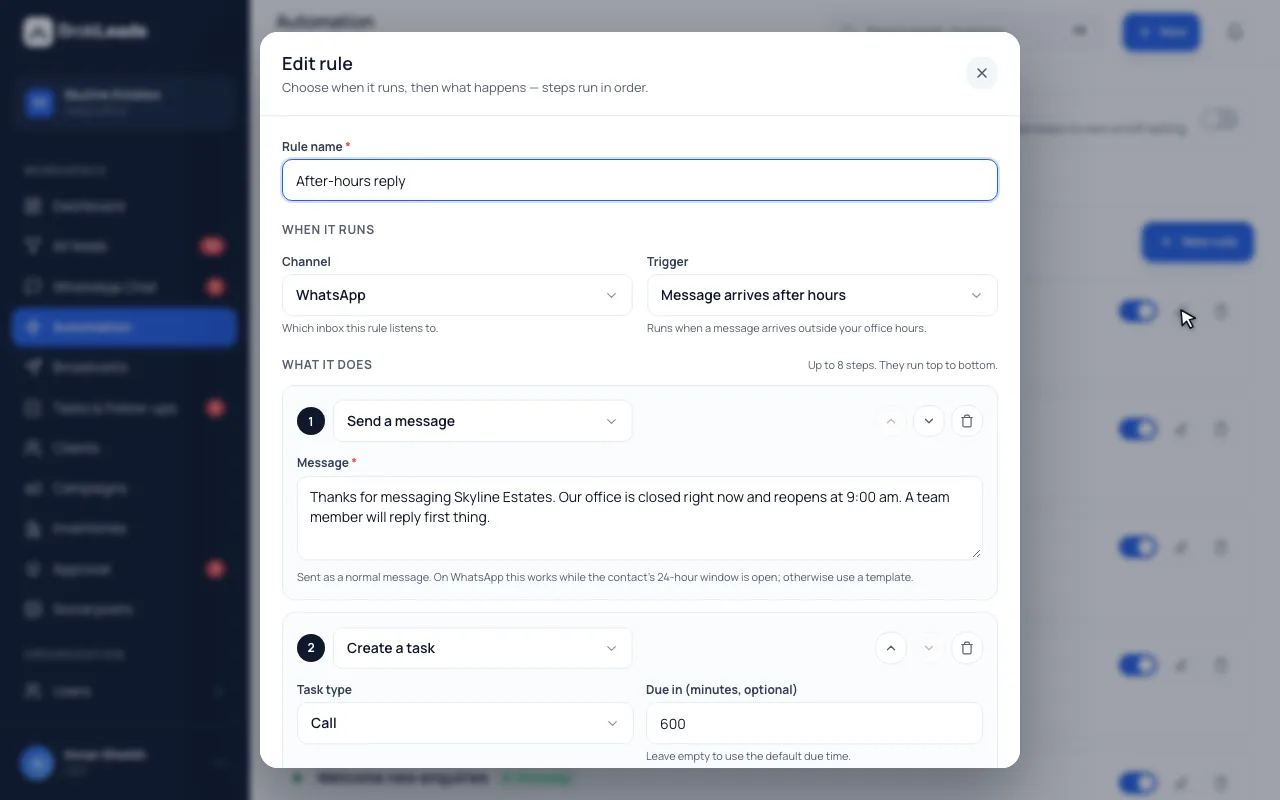
Choose when a rule runs: on a customer's first message, on a keyword (contains, exact or starts with), when a new lead's first message arrives, or when a message arrives outside your office hours. Keyword matching ignores Arabic diacritics, treats common Arabic and Urdu letter variants as the same letter and reads Urdu digits as numbers.
- Triggers: first message, keyword, after hours, no reply, new lead
- Arabic and Urdu spelling variants still match your keyword
- After-hours rules use your workspace's office hours
- When
- A message arrives outside office hours
- Send text
- Thanks for writing. Our team is offline and will reply when the office opens.
- Add tag
- after-hours
- Create task
- A follow-up task for the agent who gets the chat
Do more than one thing in a single rule
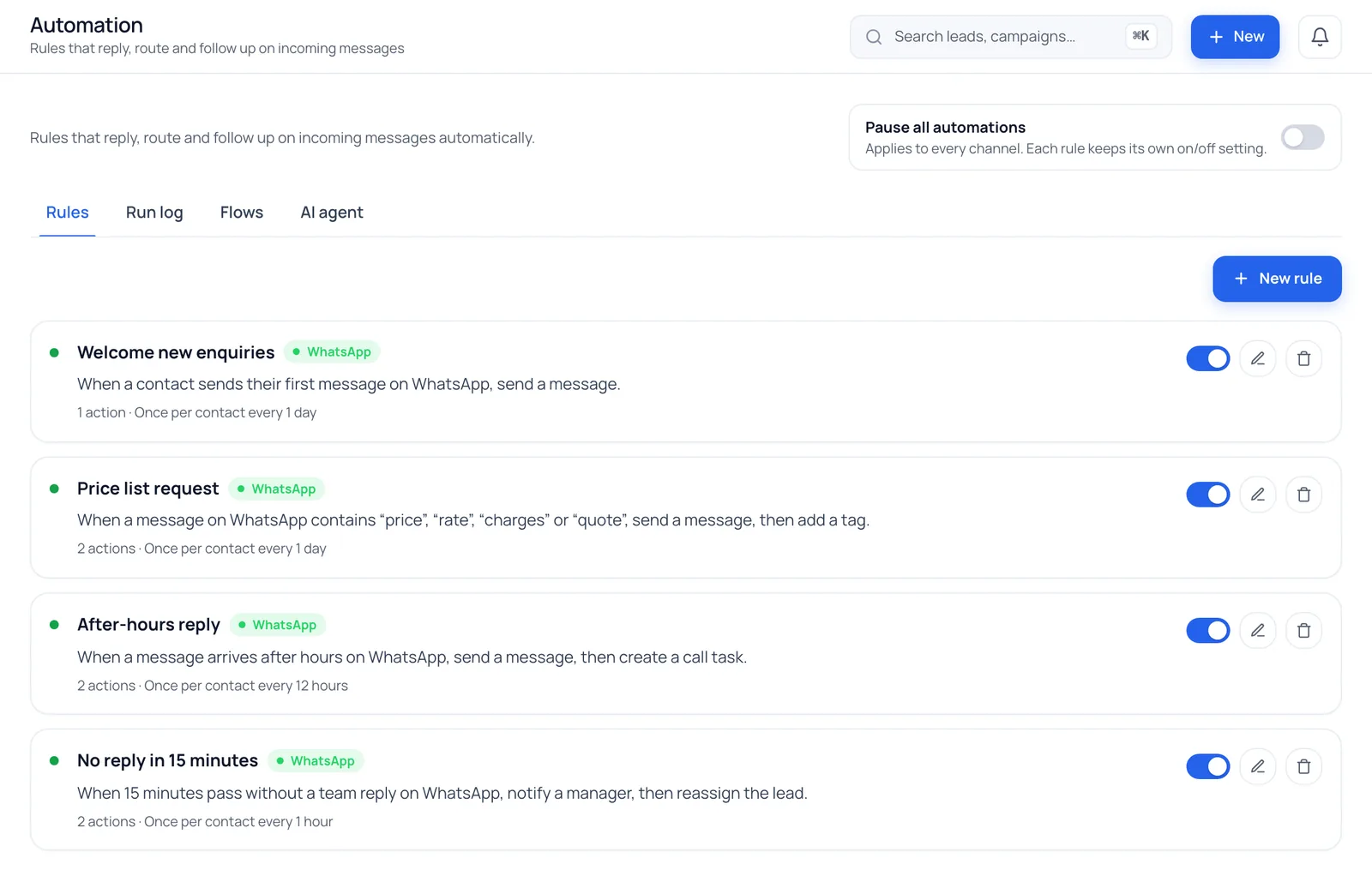
A rule runs its actions in order: send a text or an approved template, assign an agent, add a tag, create a follow-up task, change the lead stage, alert your managers, reassign the lead or start a guided flow. Each contact has a cooldown so one rule cannot fire again and again, and one pause switch stops every rule in the workspace.
- Free text inside WhatsApp's 24-hour window, approved templates outside it
- A cooldown per contact, adjustable per rule
- One pause switch for the whole workspace
Chase unanswered chats, and see exactly what ran
A no-reply rule watches chats where the customer spoke last and nobody has answered for the minutes you set, then alerts a manager or moves the lead to another agent. The run log lists every firing: which rule, which chat, which trigger, what each action did and, when something was skipped, why.
- A new customer message re-arms a no-reply rule
- Skipped actions say why, for example outside the 24-hour window
- Marketing templates are only sent to contacts with recorded consent
- When
- The customer wrote last and no agent has replied for 15 minutes
- Notify managers
- An alert naming the rule and the chat
- Reassign lead
- To the next eligible agent
- Run log
- Rule, chat, trigger, each action's result and any reason it was skipped
From first rule to run log in four steps
- 1
Choose the trigger
Start from a first message, a keyword, a new lead, an after-hours message or an unanswered chat. Pick WhatsApp as the channel.
- 2
Add one or more actions
Reply with text or an approved template, assign an agent, tag, create a task, change the stage, alert a manager or start a guided flow.
- 3
Set the cooldown and switch it on
Keep the default cooldown or set your own. Rules run in the order you list them.
- 4
Read the run log
Check what fired, on which chat and why, and pause everything with one switch if you need to.
Who it suits, and what it does not do
A good fit if
- Teams that get enquiries outside office hours and want every customer acknowledged
- Owners who want an unanswered chat to alert a manager or move to another agent
- Teams that want a keyword such as “price” or “location” to trigger the right reply and the right agent
What it does not do
- It is not a chatbot builder. Rules send fixed messages and templates and do things like assign or tag; they do not hold a free conversation. For a short question-and-answer sequence, use guided flows.
- Free text only works inside WhatsApp's 24-hour window. Outside it a rule can only send a Meta-approved template; otherwise the action is skipped and the log says so.
- After-hours rules depend on your weekly office hours, which an owner or manager sets in Settings. With none set, the workspace counts as always open and an after-hours rule never fires.
- Marketing templates only go to contacts with recorded consent, in automation as in broadcasts.
Questions about WhatsApp automation
Can I send an automatic WhatsApp reply outside office hours?
Yes. An after-hours rule replies to any message that arrives outside your workspace's office hours, and can also tag the chat and create a follow-up task. Owners and managers set the weekly office hours themselves in Settings > Branch; with none set, the workspace counts as always open and an after-hours rule never fires.
Is BrokLeads automation a WhatsApp chatbot?
No. Rules send fixed text or approved templates and perform actions such as assigning an agent or creating a task; they do not hold a free conversation. For a short question-and-answer sequence that fills in the lead, use guided flows.
Can an automatic reply be sent after 24 hours?
Only as a Meta-approved template. WhatsApp allows free-text replies for 24 hours after the customer's last message, so a text action outside that window is skipped and logged, while an approved template can still be sent.
Can one rule do several things?
Yes. A rule runs its actions in order, for example send a reply, assign an agent, add a tag and create a follow-up task. The actions available are send text, send an approved template, assign an agent, add a tag, create a task, change the lead stage, notify managers, reassign the lead and start a guided flow.
How do I stop an automation sending too many messages?
Each rule has a cooldown per contact, and one pause switch stops every rule in the workspace at once. Automations only create outgoing messages, so they never trigger themselves.
What does a no-reply rule do?
It watches chats where the customer wrote last and no agent has replied for the number of minutes you set. It can alert your managers or reassign the lead to another eligible agent, and it fires once per unanswered message.
Does keyword matching work for Arabic and Urdu?
Yes for common spelling differences. Before matching, BrokLeads removes Arabic diacritics, treats common Arabic, Persian and Urdu letter variants as one letter and reads Arabic-Indic digits as ordinary digits. Roman Urdu works as the exact spellings you list.
Can I see what an automation did?
Yes. The run log records every firing with the rule, the chat, the trigger, the result of each action and the reason for anything skipped, so you can check a rule before you rely on it.
Works with
See an after-hours rule built with your wording
See BrokLeads with your own leads and team in a 30-minute walkthrough. Onboarding is free.