
Know exactly how every agent is performing
See each agent's leads, pipeline and closed deals without asking for updates, and approve every deal before it counts.
What does a sales team performance report show?
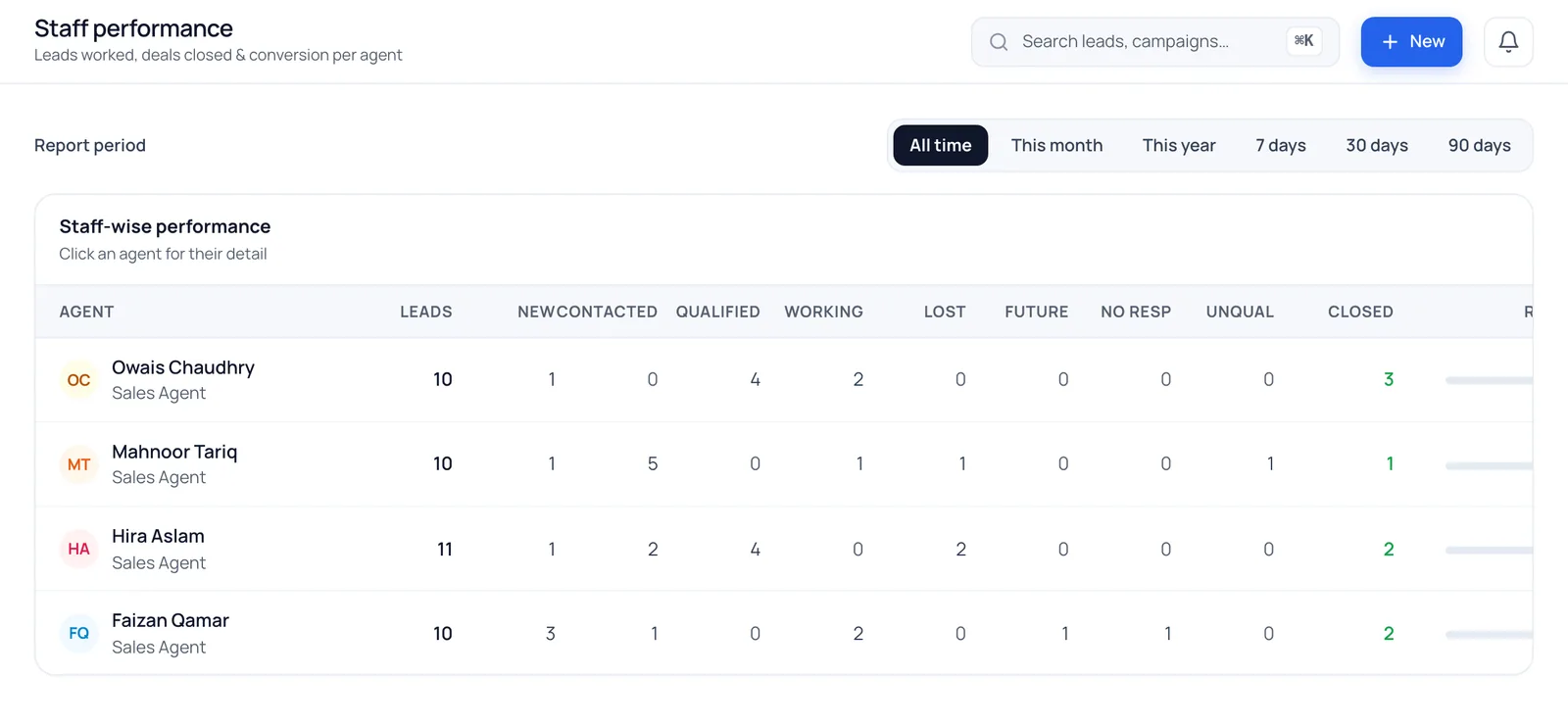
In BrokLeads it shows, for each agent, the leads received, pipeline stages, deals closed, conversion and revenue, plus follow-ups done and overdue. A deal counts only after the owner or a manager approves it, so the numbers can't be inflated, and Meta ad spend and cost per lead sit alongside.
How can an owner track agent performance?
Every report is built from the same leads, chats and approved deals your team works in, so there's nothing to compile at month-end.
Staff performance
Leads, pipeline stages, deals, conversion and revenue for each agent.
Follow-up discipline
Tasks done and overdue per agent, so cold leads show up early.
Ad performance
Spend, cost per lead, CPC and CPM from your Meta ad account.
Approved revenue
Revenue counts only deals the owner or a manager has approved.
Owner control, built in
You approve every closed deal
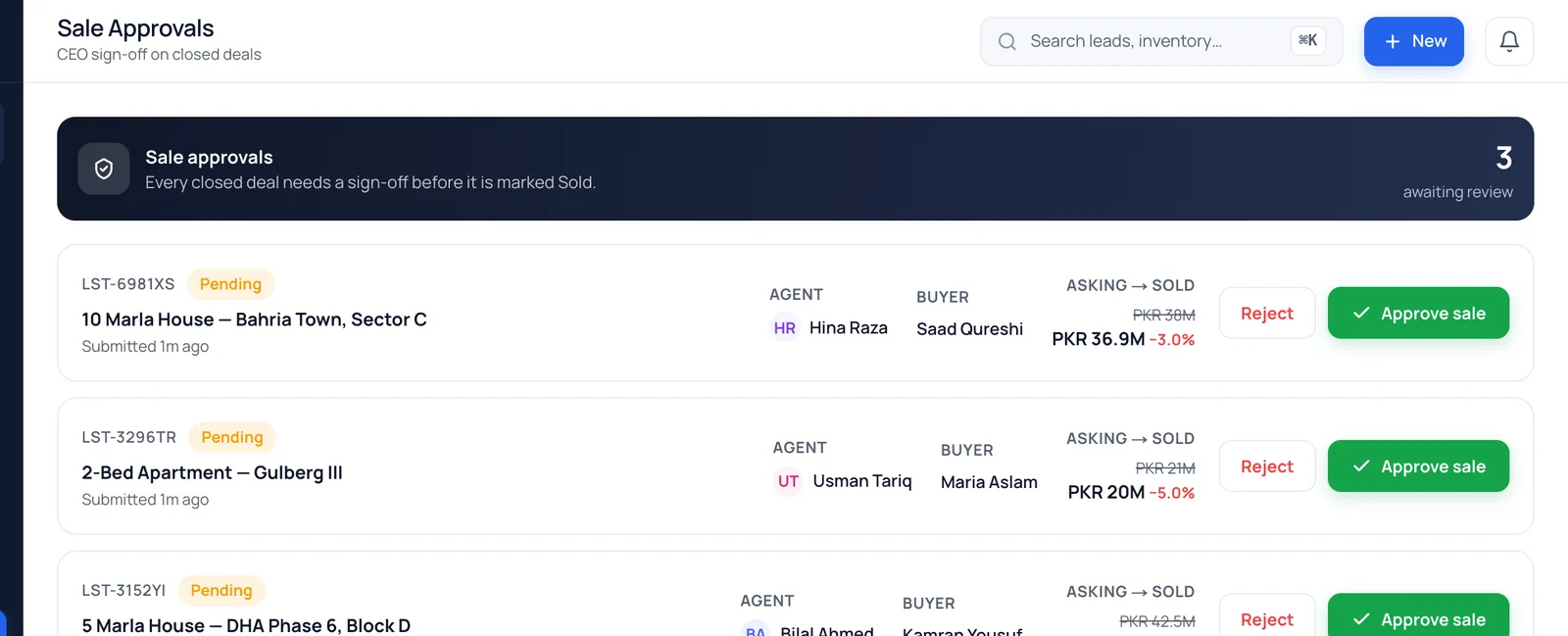
Agents record each closed deal with its amount. It waits for approval before it counts, and you can approve or reject it on the web or in the mobile app. Property teams approve unit sales the same way.
- Approve or reject on web or mobile
- History of who approved what, and when
The right people see the right data
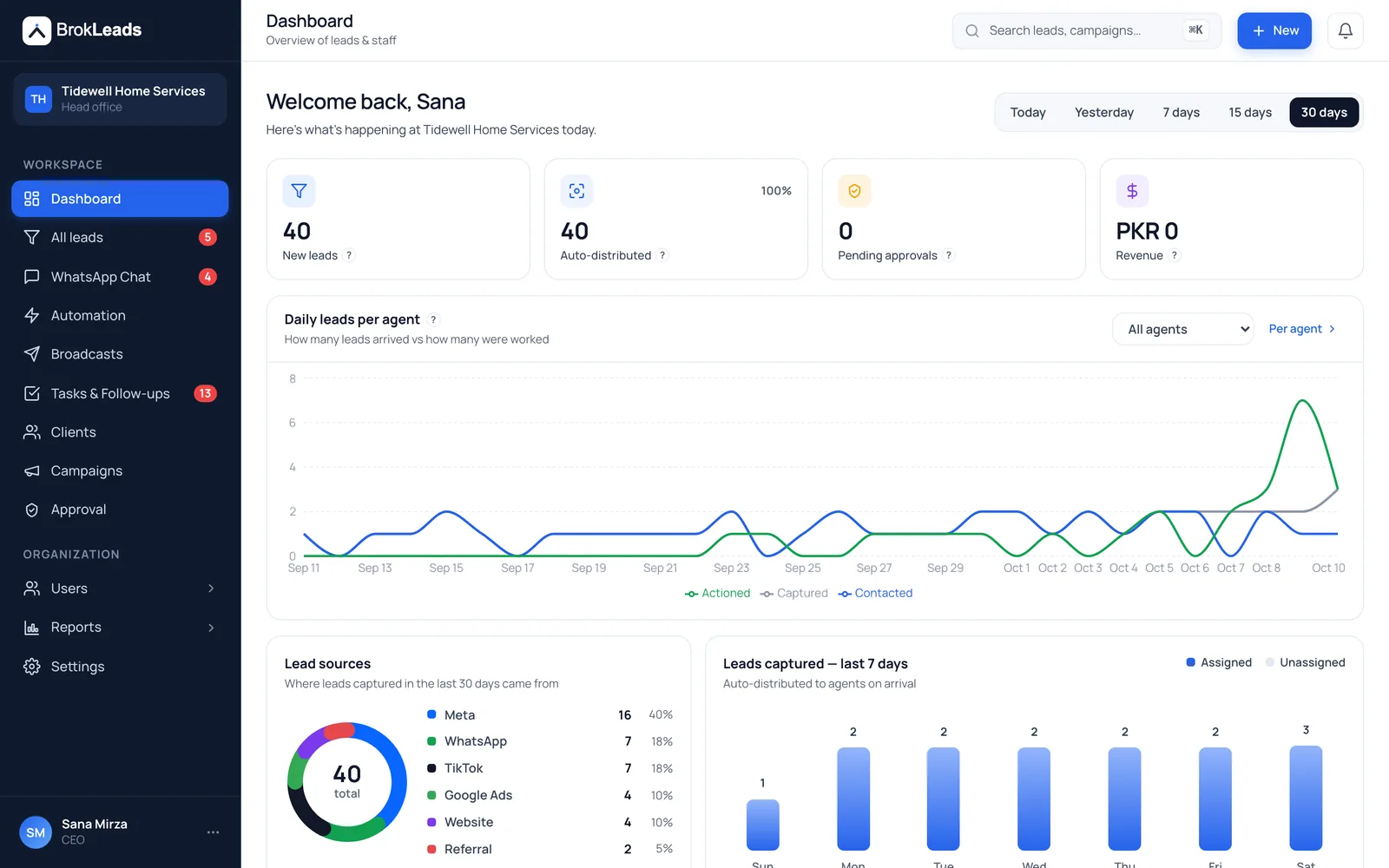
Agents see only their own leads and conversations. Owners and managers see the whole business, and revenue figures stay with the owner.
- Role-based access
- Filter any report by period
See how fast new leads get a first response
The response-time report shows, for new leads, how long it took your team to make a first response, against a target you set (the default is 15 minutes). It counts the first message or logged call by a person on your team, and it uses your office hours if you have set them, otherwise plain clock time. Only owners and managers can open it. It is included, and it counts only first replies that are logged in BrokLeads.
- Median, average and share answered within the target
- By agent, day and hour, plus the leads still waiting
- Automatic replies and broadcasts never count
Agent performance tracking for small sales teams
Ask most business owners how their agents did last month and the answer comes from memory or a spreadsheet assembled the night before. Deals get claimed twice, follow-ups are invisible, and the best closers look the same as agents who never pick up the phone.
BrokLeads reports come straight from the work: leads assigned, stages reached, tasks completed or overdue, and deals you approved. Filter by this month, this year, or the last 7, 30 or 90 days, and coach on facts instead of feelings. Ad spend and cost per lead come from campaign reports.
Questions about reports
Can agents see each other's leads?
No. Agents only see the leads and conversations assigned to them. Owners and managers see the whole business.
Can I report on a specific period?
Yes. Reports can be filtered to this month, this year, or the last 7, 30 or 90 days.
Can I approve deals on my phone?
Yes. Pending deals appear in the BrokLeads mobile app (Android app on Google Play; iOS coming soon) and on the web.
What does the response-time report show?
For new leads in the period you pick, it shows how long your team took to make a first response: the median and the average, the share answered within your target, a breakdown by agent, day and hour, and a list of leads still waiting. Only owners and managers can open it; sales agents cannot. It is included with your workspace and is on by default.
How does BrokLeads count a first response?
A first response is the first message or logged call by a person on your team. A WhatsApp message sent by a person from the BrokLeads inbox counts, and so does a call logged when an agent uses the Call button on a lead in BrokLeads. Automatic replies from rules, flows and the AI pilot option, broadcasts, failed sends, notes and tasks do not count. An AI suggestion counts only when a person sends it. BrokLeads records that the agent used the Call button, not whether the call connected. The report can only count a first reply that is logged in BrokLeads: calls made outside BrokLeads, and chats answered where BrokLeads cannot see them, are not counted.
Does the response-time report use office hours?
Yes, if you have set office hours in Settings: time is counted only while the office is open, and a lead that arrives when it is closed starts its clock at the next opening. With no office hours set, the report uses plain clock time, 24 hours a day. The report says which one it used.
Can I set a response-time target?
Yes. The owner sets the target in Settings, and the default is 15 minutes. A lead answered in exactly the target time counts as within it. The report shows the share of leads answered within the target.
Which leads are in the response-time report?
Leads that reached you in the period you pick, for example from lead-ad forms, website forms and first chats. Imported leads, leads a team member typed in, and leads brought in by a history sync are left out, because their creation date says nothing about how fast you answered.
Get the owner's view of your sales team
A 30-minute walkthrough with your own team and campaigns.