
An AI assistant that drafts WhatsApp replies from your own records
It summarises a conversation and drafts a reply from the questions and answers you wrote. The AI suggests; a person reads, edits and sends. If a draft cannot be backed by your records, it is withheld and the chat goes to a person.
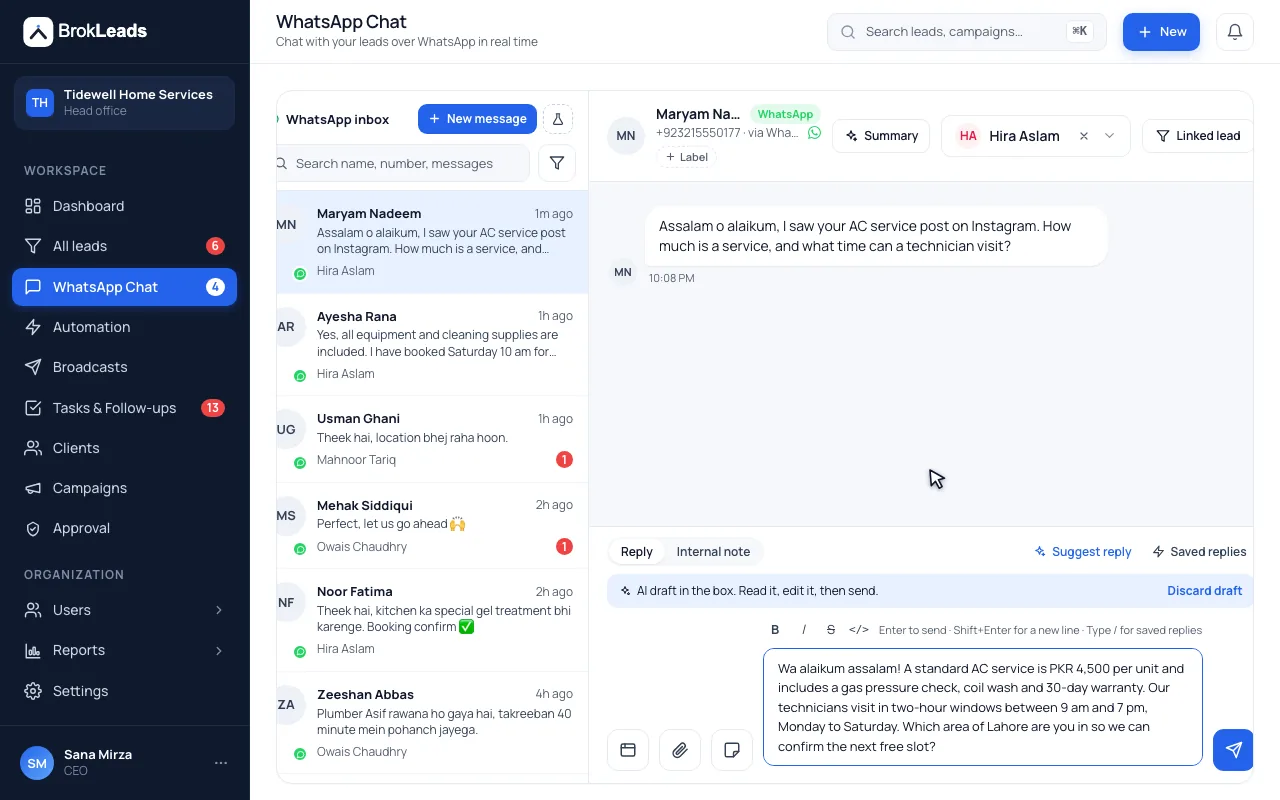
What does the BrokLeads AI assistant do?
The assistant summarises a WhatsApp conversation and suggests a reply that an agent edits and sends. It drafts only from your own records: a knowledge store of questions and answers you write and, in real estate workspaces, your inventory. Every price, area or figure must match those records or the draft is withheld and the chat is handed to a person. It stays off until your workspace is switched on.
Drafts you can check, from records you control
The assistant is built to help an agent reply faster and more consistently. It suggests, and your team sends.
A summary and a suggested reply, in the customer's language
Open a conversation and ask for a summary of what the customer wants, or for a suggested reply. The suggestion appears as a draft: the agent edits it and sends it. It can write in English, Roman Urdu, Urdu or Arabic, in whichever of those languages your workspace turns on.
- The AI suggests and a person sends: nothing goes out on its own by default
- Languages: English, Roman Urdu, Urdu and Arabic, enabled per workspace
- A summary is kept until a new message arrives
- Question
- What are your office hours?
- Answer you approve
- Monday to Saturday, 9 am to 6 pm.
- Used for
- Suggested replies when a customer asks about opening times
Checked against your records before a draft is shown
The assistant sees one conversation at a time with phone numbers and email addresses removed, plus your knowledge entries. Before a draft is offered it must pass checks: every price, area or date-like figure has to appear in your records or in the customer's own words, forbidden topics are blocked, the language must be one you enabled and confidence must be high enough. If any check fails, the draft is withheld and the chat is handed to a person.
- Handover when the customer asks for a human, complains, negotiates price, or raises legal, medical or financial questions
- Forbidden topics that you define
- Conversation text goes to Anthropic, our AI provider, only when AI is switched on for your workspace, and only to write a summary or a reply (a suggestion your team reviews, or an automatic reply where that pilot option is on)
- Figures
- Every price, area or date matches your records or the customer's words
- Topics
- Nothing on your forbidden list
- Language
- One your workspace has enabled
- Confidence
- High enough, otherwise it hands over
An audit log of every run, and a console to test it first
Every summary and suggestion is recorded with the checks it passed or failed and what the agent did with it: sent as drafted, edited, or discarded. Usage counts show how often it is used, and a test console lets you try questions against your knowledge entries before agents rely on it.
- Audit log for managers: each run, its checks and its outcome
- Usage counts
- Drafts are generated with Anthropic's Claude
- Run
- Suggested reply on one conversation
- Checks
- Figures, topics, language and confidence, each marked passed or failed
- Outcome
- Sent as drafted, sent after editing, or discarded
Four steps from request to first suggestion
- 1
Ask for it to be switched on
The assistant is off by default. It is enabled per workspace, by request, on Growth and Business, so raise it when you book a demo.
- 2
Write your knowledge entries
Add the questions customers ask most, with the answer you want given: hours, payment plans, locations, prices.
- 3
Test it in the console
Try real questions and see the draft and the checks before any agent uses it.
- 4
Agents use it in the inbox
Agents ask for a summary or a suggested reply, edit the draft and send it themselves.
Who it suits, and what it does not do
A good fit if
- Teams that answer the same questions every day, such as prices, hours, locations and payment plans, and want a consistent first draft
- Owners who want every AI draft to be checkable after the fact
- Agents who handle long chats and want a summary before they reply
What it does not do
- It is not on for every workspace. It is off until switched on. AI is switched on per workspace, by request.
- It does not send AI replies on its own by default. An automatic first or after-hours AI reply exists only on request, in a pilot, switched on per workspace; it replies only before a person has answered, and hands the chat to a person when it is unsure.
- It does not replace your team, close deals or negotiate. Price negotiation, complaints and legal, medical or financial questions are handed to a person.
- It is not a general chatbot. It answers only from your own records, and it will not answer what those records do not cover.
- It works in four languages (English, Roman Urdu, Urdu and Arabic) and only the ones you enable.
Questions about the AI assistant
Does the AI reply to customers on its own?
Not by default. BrokLeads does not send AI replies on its own by default: the AI suggests and a person sends. An automatic first or after-hours AI reply exists only on request, in a pilot, switched on per workspace. When that pilot option is on, the AI replies only before a person has answered and hands the chat to a person when it is unsure. BrokLeads does not offer the assistant as a replacement for your agents.
Is the AI assistant available on every workspace?
No. It is off by default and switched on per workspace, by request. AI suggestions are available on Growth and Business, on request. They are not part of Starter. Ask for it when you book a demo.
What data does the AI see?
One conversation at a time, with phone numbers and email addresses removed, plus the knowledge entries you wrote and, in real estate workspaces, your inventory. That text is sent to Anthropic, our AI provider, only when AI is switched on for your workspace, and only to write a summary or a reply: a suggestion that your team reviews or, where the automatic-reply pilot option is on, an automatic reply.
What happens when the AI is not sure?
The draft is withheld and the chat is handed to a person. Every price, area or date-like figure in a draft must match your records or the customer's own words, and a failed check, an unsupported language or low confidence all lead to a handover.
Which languages does it write in?
English, Roman Urdu, Urdu and Arabic, in the languages your workspace has enabled. It does not draft in other languages.
Which AI model does it use?
Drafts are generated with Anthropic's Claude through its API. The assistant only receives the redacted conversation and your records.
Can I see what the AI wrote and what agents did with it?
Yes. The audit log records every summary and suggestion with the checks it passed and whether the agent sent it, edited it or discarded it, and usage counts show how often it is used.
Can the AI negotiate prices or close a deal?
No. It does not negotiate, close deals or give legal, medical or financial advice. Those topics trigger a handover to a person.
Works with
Ask about the AI assistant
See BrokLeads with your own leads and team in a 30-minute walkthrough. Onboarding is free.