
Import leads from Excel or CSV into your CRM
Upload a spreadsheet, check the column mapping, read the duplicate report and import. Rows that fail come back in a downloadable file with the reason, and every imported lead is tagged with its import batch.
How do I import leads from Excel into BrokLeads?
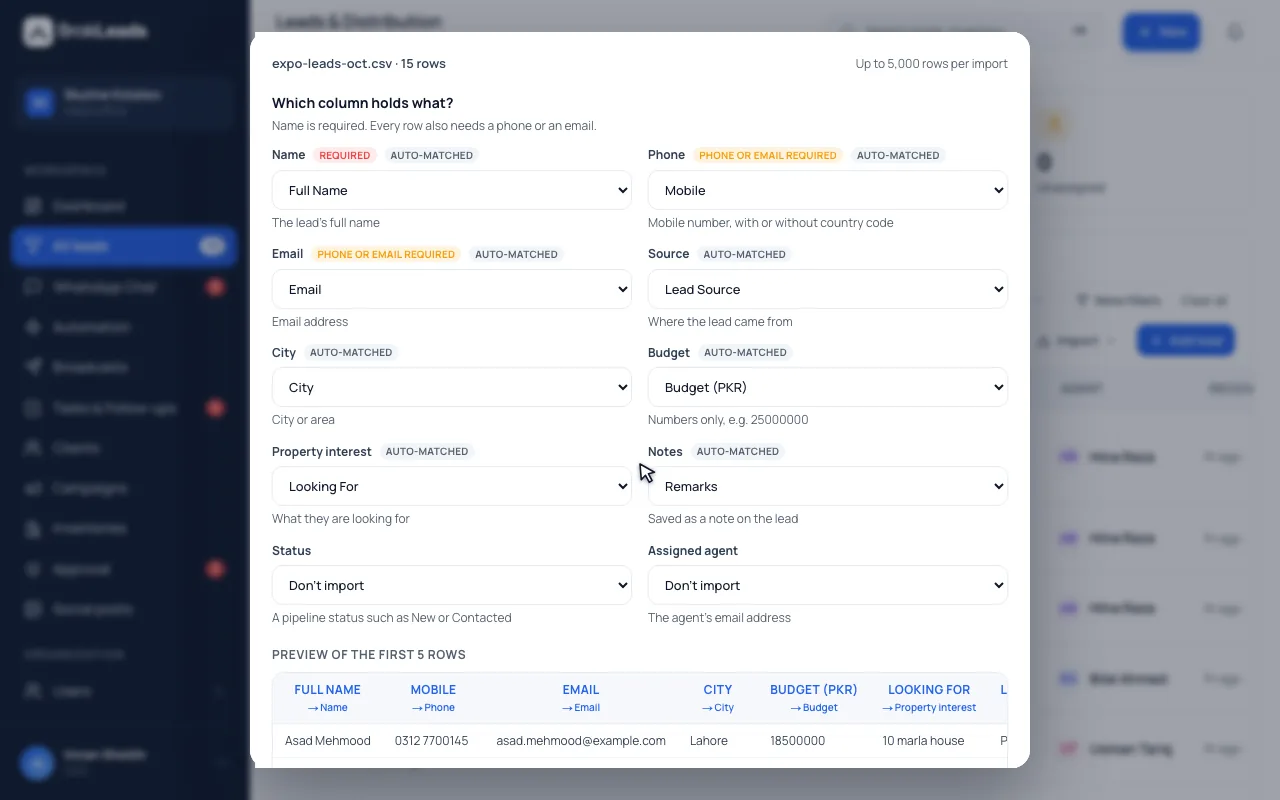
Upload a CSV or Excel (.xlsx) file, check the column mapping, which BrokLeads guesses including Arabic headers, choose whether to skip duplicates or only fill empty fields, and read the report before you confirm. The import then runs in the background, and rejected rows can be downloaded with the reason for each. Only owners and managers can import.
Mapping, a duplicate check and a rejected-rows file
An import should never be a leap of faith. You see what will happen before anything is saved.
Map your columns once
BrokLeads reads the header row and suggests which column is the name, phone, email, source, city, budget, interest, notes, status or agent, including common Arabic headers. Your mapping is remembered for the next file. Phone numbers are checked against your workspace's country, and budgets such as “50 lac” or “1 crore” are understood.
- Fields: name, phone, email, source, city, budget, interest, notes, status, agent email
- Headers are guessed automatically, Arabic included
- Up to 5,000 rows per file by default
A duplicate check before anything is written
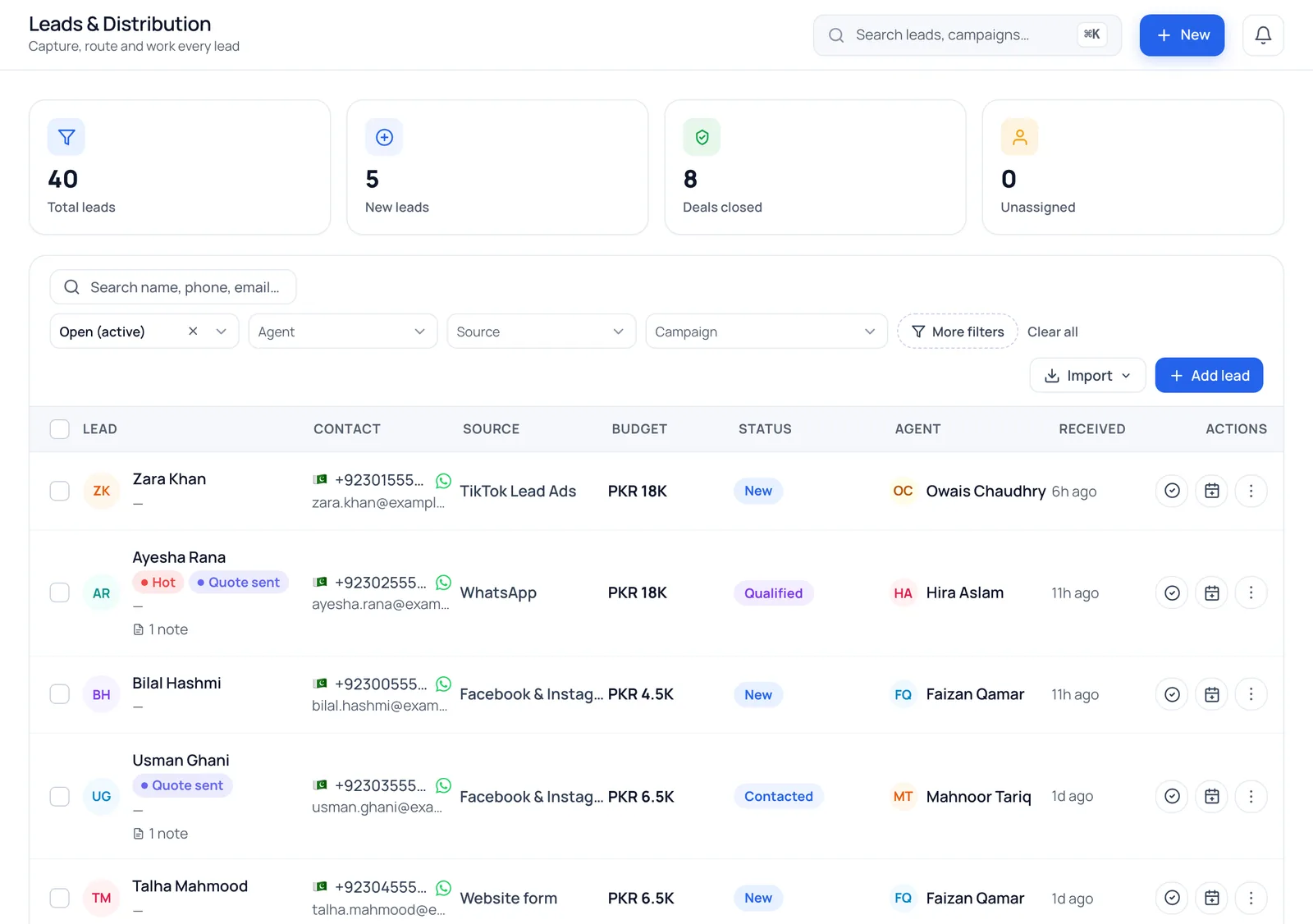
The whole file is validated first and nothing is saved. The report counts valid rows, duplicates and invalid rows. A row is a duplicate if its phone number or email already belongs to a contact, or repeats earlier in the file. You choose to skip duplicates or to fill only their empty fields; existing data is not overwritten.
- Duplicates are matched on phone number or email
- Choose: skip duplicates, or update empty fields only
- Invalid rows say why, for example an unrecognised phone number
- Valid
- Rows that will become leads
- Duplicates
- Same phone or email as an existing contact, or repeated in the file
- Invalid
- A missing name, no phone or email, or a value that does not fit its field
Imported leads are tagged, shared out and kept consent-free
The import runs in the background. Each lead is tagged with its import batch and an Imported source, and a lead with no agent in the file goes through your lead distribution. Rejected rows download as a CSV with the reason for each, and an import history keeps every batch. Imported contacts are recorded without marketing consent.
- A downloadable rejected-rows file
- An agent column, matched by email, assigns the lead to that agent
- No marketing consent is recorded for imported contacts
- Row
- The row number in your file
- Reason
- For example “Needs a phone number or an email”
- Your data
- The original values, so you can fix them and import again
Five steps from spreadsheet to leads
- 1
Upload the file
Choose a .csv or .xlsx file. BrokLeads reads the headers and shows a sample of your rows.
- 2
Check the mapping
Confirm which column is which field, and choose how to treat duplicates.
- 3
Read the report
See how many rows are valid, duplicate or invalid. Nothing has been saved yet.
- 4
Confirm the import
The import runs in the background, and each lead is tagged with its batch.
- 5
Download the rejected rows
Fix the rows that failed using the reasons in the file, and import them again.
Who it suits, and what it does not do
A good fit if
- Teams moving from a spreadsheet or an export from another tool
- Businesses with a list from an event, a walk-in register or an older campaign
- Owners who want to see duplicates before they are created
What it does not do
- Imported contacts start without marketing consent. They cannot receive marketing broadcasts until consent is recorded; importing a list does not give you permission to message it.
- Only owners and managers can import.
- Files are .csv or .xlsx, up to 20 MB and 5,000 rows by default. The BrokLeads team can raise the row limit; otherwise split the file.
- Duplicates are matched on phone number or email only, not on name. Property listings have their own bulk upload.
Questions about importing leads
Can I import leads from Excel into BrokLeads?
Yes. Owners and managers can upload a .xlsx or .csv file, map its columns to lead fields, check a duplicate report and import. The import runs in the background and any rejected rows come back in a downloadable file with the reason for each.
What file formats and sizes are supported?
CSV and Excel (.xlsx) files up to 20 MB. The default limit is 5,000 rows per file, which the BrokLeads team can raise; split larger files into parts.
How does the duplicate check work?
A row is a duplicate if its phone number or email already belongs to an existing contact, or appears earlier in the same file. You choose to skip duplicates or to fill only their empty fields. Nothing is written until you confirm the report.
Can I message imported leads on WhatsApp straight away?
Not with marketing broadcasts. Imported contacts are recorded without marketing consent, so a marketing template will not go to them until someone records that the customer agreed. Your agents can still call them, and reply if they write in.
What happens to rows that fail?
They are left out of the import and listed in a downloadable CSV with the row number and the reason, such as a phone number that could not be recognised. Fix the rows and import that file again.
Who can import leads?
Owners and managers. Agents cannot import files.
Are imported leads assigned to agents?
If your file has an agent column, matched by the agent's email, the lead goes to that agent. Otherwise it goes through your normal lead distribution.
Can I find the leads from one import later?
Yes. Every imported lead is tagged with its import batch, and the import history keeps each file with its counts, so you can find and review a batch.
Works with
Bring your own spreadsheet to the demo
See BrokLeads with your own leads and team in a 30-minute walkthrough. Onboarding is free.