WhatsApp coexistence: use the Business app and the API on the same number
How WhatsApp coexistence lets one number work in the Business app and in BrokLeads at once: setup, what syncs, what Meta switches off, and who it suits.

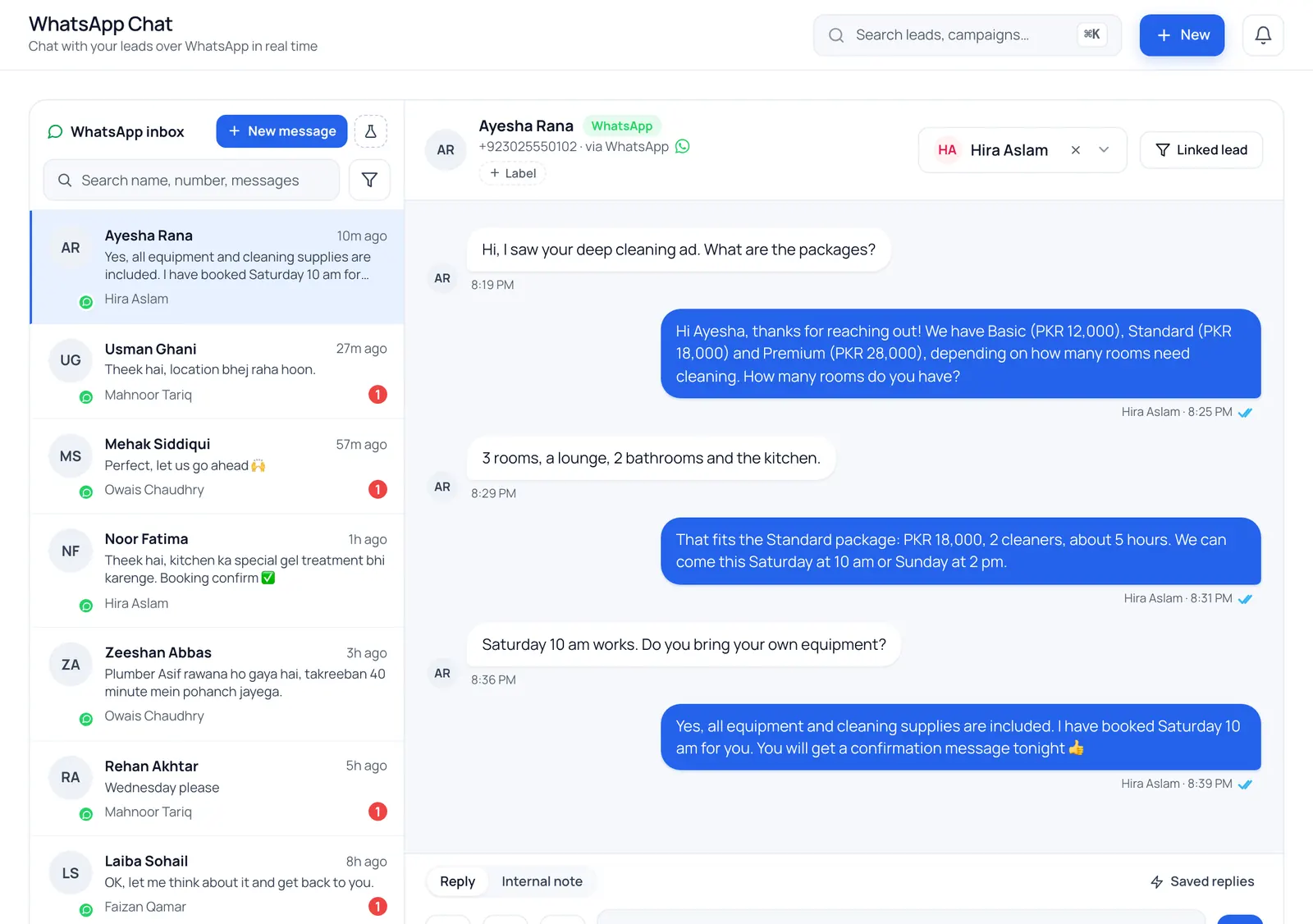
WhatsApp coexistence is a Meta feature that lets one number stay in the WhatsApp Business app on your phone while a team also answers it in BrokLeads. You keep the app and your chats, and messages are mirrored both ways. It comes with limits set by Meta.
Most agencies and sales teams start on the WhatsApp Business app. The owner or a senior agent answers customers on a phone, and years of chats build up there. Then the team grows, chats get missed, and someone says the business needs a shared inbox. That is where the trouble starts: moving a number onto the WhatsApp Business API normally means giving up the app on that number.
WhatsApp coexistence is Meta's answer to that problem. This guide explains what it is, how it works step by step, what you keep, what changes and what is not available, so you can decide whether it fits your team before you connect anything.
The limits in this guide follow Meta's developer documentation for onboarding WhatsApp Business app users, and the connection screens inside BrokLeads.
The problem: moving a number to the API strands your chats
The WhatsApp Business API has no app of its own. A team uses it through a platform such as a CRM, which gives you a shared inbox, assignment, templates and automation. The WhatsApp Business app is the opposite: free, built for one phone and a few linked devices.
Without coexistence, a number can be used by the API or by the app, not both. To connect a number that is in the Business app, you remove it from the app first, and the chat history in the app does not move across. The usual workarounds are a fresh number for the team, which means telling every customer, or a planned switch-over date and a clean break.
Many teams will not accept either. The owner wants to keep answering the important customers from the phone. The team wants a shared inbox. Coexistence is meant to give both.
What is WhatsApp coexistence?
Coexistence lets the same number work in two places at once: the WhatsApp Business app on your phone, and a platform connected through the API. Meta's own documentation calls the feature "Onboard WhatsApp Business app users" and says it is sometimes called coexistence.
In plain words:
- Customers keep writing to the same number. Nothing changes for them.
- A new customer message arrives on your phone and in BrokLeads.
- A reply typed on the phone shows up in BrokLeads, marked as sent from the phone.
- A reply sent from BrokLeads shows up in the app chat on the phone.
- With your permission, WhatsApp copies your recent one-to-one chats and your contacts into BrokLeads when you connect.
It is a connection mode that Meta offers, with a defined list of what works and what does not. BrokLeads supports it and enables it for your workspace on request.
How it works, step by step
1. Check what you need
- The number must be in the WhatsApp Business app, version 2.24.17 or higher, on your phone. A number that is only in the regular WhatsApp app is not eligible.
- You must be able to open the Business app at least about every 13 days. WhatsApp disconnects the number after roughly 14 days without use, and the connection would stop.
- Your workspace needs coexistence switched on. We enable it per workspace on request.
- Coexistence works where Meta allows it for your number and country. If Meta does not allow it, BrokLeads shows a message, and you can connect the number as a standard number instead.
2. Connect from BrokLeads
In BrokLeads you choose the option for a number you use in the Business app. A Meta sign-in window opens. You choose to connect your existing WhatsApp Business app account, enter the number, and confirm on your phone. The exact screens are Meta's and can change.
3. Decide about your chat history
On the phone, WhatsApp asks whether you agree to share your chat history. If you agree, up to 180 days of your one-to-one chats and your contacts are copied into BrokLeads. If you decline, only new messages appear. WhatsApp offers the history once, when the number is connected, so decide before you confirm.
4. Keep the app open during the first sync
The first sync can take several minutes. WhatsApp allows 24 hours for it, and the Business app has to stay open on your phone while it runs. BrokLeads shows the sync status and the hours left of the 24 on the WhatsApp settings card. If the sync does not finish in time, the only way to start it again is to disconnect in the app, wait 15 minutes and connect again.
5. Work in both places
From then on, new messages are mirrored in both directions. Your team replies in BrokLeads, and you can still reply on the phone.
What you keep and what changes
Customers
on WhatsApp
They keep writing to the same number as before.
One WhatsApp number
Same number, same chats
WhatsApp Business app
On the owner's phone
Reply here, as before. It shows in BrokLeads, marked "sent from the phone".
BrokLeads
The team's shared inbox
Reply here. It shows in the app chat on the phone. New customers become leads.
Messages are mirrored both ways
Three limits to know
- Up to 180 days of chatsone-to-one, copied in with your OK
- Open the Business appabout every 13 days, or it disconnects
- 20 messages per secondthe sending limit for this number
| WhatsApp Business app only | Coexistence | Standard API connection | |
|---|---|---|---|
| Keep using the Business app on the phone | Yes | Yes | No, the number leaves the app |
| Team answers from a shared inbox | No, one phone and a few linked devices | Yes, in BrokLeads | Yes, in BrokLeads |
| Old one-to-one chats | Stay in the app | Stay in the app; with your permission the last 180 days are also copied into BrokLeads | Do not move across |
| Messages you type on the phone | Normal | Appear in BrokLeads, marked as sent from the phone | Not applicable |
| Messages sent from BrokLeads | Not applicable | Appear in the app chat | Not applicable |
| Messaging fees | Messages typed in the app are free | App messages stay free; messages sent through BrokLeads follow Cloud API pricing | Cloud API pricing applies |
| Broadcasts from BrokLeads | Broadcast lists in the app | Capped at 20 messages per second for this number | Not subject to this cap |
| Linked devices | A few | Up to four; WhatsApp for Windows and WearOS not supported | Not applicable |
A few details behind the table:
- Phone replies and the response-time report. A reply you type on the phone counts as a team response in the response-time report. BrokLeads cannot tell which person typed it, so it appears as an unknown agent in the by-agent breakdown.
- Edits and deletions. Edits and deletions made in the app are applied in BrokLeads.
- History does not create leads. Copied chats arrive as quiet, read history. They create no leads, no unread badges and no notifications. When one of those customers next writes, BrokLeads links or creates the lead and distributes it as for any new message.
- Contacts. Your contacts come across as names, used when a chat with that number is opened. They do not become leads or clients.
- Photos and files. Media from the last 14 days is copied. Older media appears as a labelled placeholder.
- Linked devices are unlinked. Connecting unlinks all linked devices from the account. You can link the supported ones again afterwards.
What is not available
Two kinds of limits apply. First, WhatsApp switches some Business app features off while the number is connected this way. Second, some app features do not exist on the API at all, so they never appear in BrokLeads.
| Feature | In the Business app while connected | In BrokLeads |
|---|---|---|
| Disappearing messages | Turned off for all one-to-one chats | Not supported |
| View once messages | Disabled for all one-to-one chats | Not supported |
| Live location messages | Disabled for all one-to-one chats | Not supported |
| Broadcast lists | You cannot create new ones; existing ones become read-only | Not supported |
| Group chats | Keep working | Not synchronized |
| Voice and video calls | Keep working | Not supported |
| Business tools (catalog, orders, status) | Keep working | Not supported |
| Messaging tools (marketing messages, greeting and away messages, quick replies, labels) | Keep working | Not supported |
| Business profile (name, address, website) | Keeps working | Not supported |
| Channels | Keep working | Not supported |
| Official Business Account (blue checkmark) | Meta says it does not grant this status to WhatsApp Business app phone numbers; its coexistence page does not say how that applies to a connected number | Not promised; Meta decides |
Other limits worth knowing:
- Blue checkmark and Meta Verified. The checkmark above is Meta's Official Business Account status. Meta Verified is a different thing: a subscription sold inside the Business app. Meta's coexistence page mentions neither.
- Sending speed. For a number connected this way, WhatsApp limits sending to 20 messages per second. This matters for large broadcasts. Broadcasts in BrokLeads are enabled per workspace on request, and a broadcast is held while the Business app is being re-registered.
- One-to-one chats only. The history copy covers one-to-one chats. Group chats are not copied or mirrored.
- Reactions and receipts. Reactions typed in the app are not mirrored. Messages mirrored from the phone do not carry delivery or read receipts.
- A chat you start on the phone creates a conversation in BrokLeads but no lead until the customer writes.
- One workspace per number. A number can be connected to one BrokLeads workspace at a time, and a workspace connects one WhatsApp number.
Who it is for, and who should connect a standard number
Coexistence is a good fit if:
- the number is already in the WhatsApp Business app and customers know it;
- the owner or senior people want to keep answering from the phone while the team uses a shared inbox;
- the chat history on that number is valuable and you do not want to lose it;
- you can open the Business app every week or so without fail;
- you mainly use one-to-one chats, not groups or calls, for sales.
Connect a new number as a standard API number if:
- the number is new, or is not used in a phone app;
- you rely on group chats, disappearing messages, view once messages or live location with customers;
- you send very large broadcasts and the 20 messages per second ceiling would slow them down;
- nobody can be relied on to open the app regularly;
- you use WhatsApp for Windows on desktops, because it is not supported while connected;
- the number is in a country where WhatsApp does not allow coexistence.
BrokLeads offers both. In Settings, Integrations, WhatsApp, the connect screen is a two-card choice, described below. The standard route is covered in our WhatsApp Business API guide and in the WhatsApp CRM overview.
What it costs
Meta bills messaging fees directly to your own WhatsApp Business Account, and BrokLeads adds no markup. Two rules from Meta matter here:
- Messages you type in the Business app stay free.
- Messages sent through BrokLeads follow the normal Cloud API rules: you can send free-form replies for 24 hours after a customer writes, otherwise you need an approved template, and Cloud API pricing applies. Messages typed in the app do not open or extend that 24-hour window.
Meta charges for API messages, so the account needs a payment method. Since 1 October 2026 that includes free-form replies (Meta calls them service messages) after a number's first 1,000 each month. Without a payment method, Meta says, service messages are delivered within that free amount but not after it. If Meta reports a payment problem, the send fails and BrokLeads shows a billing notice in the inbox. A reply typed on the phone is a message, not a team member, so it adds no user to what you pay per user.
For Meta's current rates, see our guide to WhatsApp Business API pricing in 2026 and the pricing page, which lists BrokLeads plans per user per month. The pricing page shows no separate fee for coexistence.
How to set it up in BrokLeads
Coexistence is enabled for your workspace on request. Once it is, the connect screen changes.
- Open Settings, Integrations, WhatsApp.
- You see two cards. The recommended one is "I use this number in the WhatsApp Business app and want to keep using it". The other is for a new number, or a number you do not use in a phone app.
- Choose the recommended card and open "See what changes and what is not available". The "I understand the changes and limits above" box stays locked until you have opened it.
- Tick the box and press Connect with the WhatsApp Business app.
- Follow Meta's sign-in window, confirm on your phone and choose whether to share your chat history.
- Keep the Business app open on your phone. The card shows the sync status, the messages and contacts received and the hours left of WhatsApp's 24.
If you pick the other card for a number that is in the Business app, BrokLeads warns you that connecting it moves the number to the cloud and you stop using it in that app.
To disconnect, press Disconnect from BrokLeads on the card. That ends the connection on the BrokLeads side and keeps the chats already imported. It does not disconnect the number in the app: also open the Business app, go to Settings, Account, Business Platform and tap Disconnect. WhatsApp asks you to wait 15 minutes before connecting the number again.
Frequently asked questions
Do I lose my WhatsApp chats if I connect through coexistence?
No. Your chats stay in the Business app. With your permission, WhatsApp also copies up to 180 days of your one-to-one chats into BrokLeads as read history. Group chats are not copied, and media older than 14 days appears as a placeholder.
Can my team and I both reply, one in BrokLeads and one on the phone?
Yes. Replies typed on the phone appear in BrokLeads, marked as sent from the phone, and replies sent from BrokLeads appear in the app chat. BrokLeads cannot say which person typed a reply on the phone.
Does it work with a normal WhatsApp number?
It works with a number used in the WhatsApp Business app, version 2.24.17 or higher. If WhatsApp says the number is not used in the Business app, BrokLeads tells you to use the new-number option instead. A number registered in the regular WhatsApp app is also a reason WhatsApp can end the connection.
How long does the first sync take?
It can take several minutes, and WhatsApp allows up to 24 hours. Keep the Business app open on your phone while it runs. We cannot promise a speed, because the sync is run by WhatsApp.
What if I stop opening the Business app?
WhatsApp disconnects the number after roughly 14 days without use, and the connection to BrokLeads would stop. We tell customers to open the app at least about every 13 days. A linked device that stays inactive for about 30 days can also end the connection.
Can I disconnect?
Yes. Use Disconnect from BrokLeads on the WhatsApp card, then tap Disconnect in the Business app under Settings, Account, Business Platform. Chats already imported stay in your inbox.
Does it cost extra?
BrokLeads adds no markup on Meta's fees, and our pricing page shows no separate coexistence fee. Meta bills messaging to your own WhatsApp Business Account: messages typed in the app stay free, and messages sent through BrokLeads follow Cloud API pricing.
Can I use broadcasts and automation with it?
Customer messages arrive as they do on any other connected number, so a lead is created and distributed as usual, and automation rules can react to them. Messages you type on the phone never trigger rules, automatic replies, AI drafts, notifications or assignment. Broadcasts, where enabled for your workspace, are capped at 20 messages per second for this number.
What happens if I move the Business app to a new phone?
Re-registering the app on a new phone ends the connection for a short time. WhatsApp reconnects BrokLeads by itself within a few minutes, and sending from BrokLeads is paused until then. Chat history is not synced during that gap.
Is coexistence available in my country?
Coexistence works where Meta allows it for your number and country. If Meta does not allow it, BrokLeads shows a message, and you can connect the number as a standard number instead.
Will coexistence protect my number from a WhatsApp review or ban?
No tool can promise that. Messages you send from BrokLeads go through the official WhatsApp Business Platform, which is WhatsApp's own business API. That is safer than using unofficial tools that automate the regular or Business app, which WhatsApp's rules do not allow. But official does not mean exempt. WhatsApp still looks at message quality: who you message, whether they agreed, and how many people block or report you.
To keep a number healthy, message people who agreed, use approved templates outside the 24 hour window, keep messages relevant, and do not send bulk messages typed in the Business app. Messages typed in the app are still covered by WhatsApp's rules.
Do I need a payment method?
Yes. Meta bills messages sent through BrokLeads to your own WhatsApp Business Account. Without a payment method, Meta says, the first 1,000 free-form replies a month for each number are still delivered, but not the ones after. See What it costs above.
Keep reading
- WhatsApp Business app vs API compared for the wider choice, including cost and team size.
- The WhatsApp team inbox for how a shared inbox works day to day.
- WhatsApp CRM for real estate in Pakistan for a sales team's view.