
How to import leads from Excel or CSV into a CRM without duplicates or consent mistakes
A checklist for importing leads from Excel or CSV into a CRM: columns, +92, +971 and +966 phone formats, duplicates, marketing consent and rejected rows.

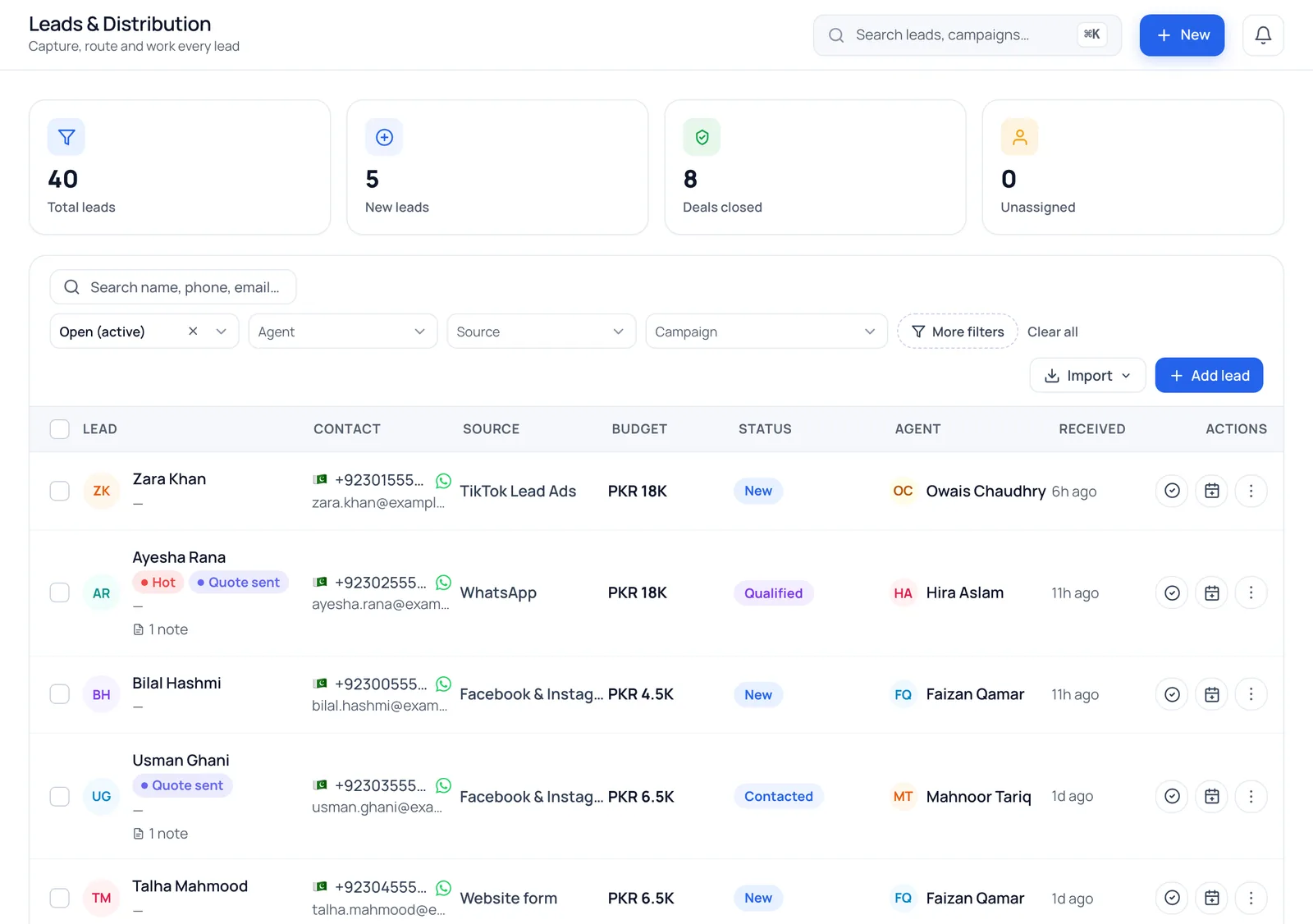
Most import problems are decided before you upload: a clean phone column, one row per person, a plan for duplicates, and an honest answer to whether these people agreed to be messaged. Test with 20 rows, keep the rejected-rows file, and do not treat an imported list as a marketing audience.
Every team that moves into a CRM arrives with the same thing: an Excel sheet. It holds years of enquiries, some exported from Facebook, some typed from visiting cards, some pasted from WhatsApp groups. Importing it takes minutes. Cleaning up after a bad import takes weeks: the same buyer appears three times, a third of the phone numbers are broken, and someone sends a promotion to a list of people who never asked for one.
This checklist is for doing it once and getting it right.
Step 1: clean the sheet before you export it
Open the file and fix these first. Fixing them in the sheet is faster than fixing them in the CRM.
- One row per person. If one buyer appears in four rows because they enquired four times, keep one row and put the history in a notes column.
- One header row at the top, with a short, plain name for each column. No merged cells, no blank rows above the headers, no totals at the bottom.
- One sheet. Many importers read only the first sheet of a workbook. Move everything you need onto it, or save the sheet you want as its own CSV file.
- A copy of the original file, saved somewhere safe. Never import from your only copy.
Step 2: choose the columns
You do not need every column. You need the right few.
| Column | Needed? | Tip |
|---|---|---|
| Name | Yes | A first name is enough, but not blank |
| Phone | Phone or email, at least one | One number per cell, in a consistent format |
| Optional if you have a phone | One address per cell | |
| Source | Strongly recommended | "Facebook", "Walk-in", "Referral". It lets you compare sources later |
| City | Recommended | Use the same spelling every time (Lahore, not Lhr) |
| Budget | Optional | A plain number, or a number with lac, crore or k, not "around 50 lac" |
| Interest | Optional | The product, course or property type they asked about |
| Status | Optional | Must match a stage your CRM knows, or the row is rejected |
| Owner | Optional | The agent's login email, not their first name |
| Notes | Optional | Past conversations, one cell |
A clean row looks like this:
| Name | Phone | Source | City | Budget | Interest | Notes |
|---|---|---|---|---|---|---|
| Ahmed Raza | 0300 1234567 | Lahore | 50 lac | 10 marla house | Dobara call karni hai, weekend par visit chahta hai |
Column names do not have to match your CRM exactly. A good importer lets you map them, and suggests a match when the header is obvious, even in Arabic. Notes can stay in Roman Urdu or any language you like; they are for your team, not for the system.
Step 3: fix the phone numbers
Phone numbers cause most rejected rows, and Excel is usually the reason.
- Excel drops leading zeros. A Pakistani number typed as 03001234567 can become 3001234567.
- Excel drops the plus sign and may display long numbers in scientific notation, such as 9.23E+11. Once that happens, the original digits are gone.
- Two numbers in one cell (for example "0300 1234567 / 0321 7654321") will not be recognised as either.
Format the phone column as Text before you paste or type anything into it. Then use a consistent pattern for each country:
| Country | Local format | International format |
|---|---|---|
| Pakistan | 0300 1234567 | +92 300 1234567 |
| UAE | 050 123 4567 | +971 50 123 4567 |
| Saudi Arabia | 050 123 4567 | +966 50 123 4567 |
Local formats are fine when every number is from one country and the CRM knows which. If your list mixes countries, for example a Dubai brokerage with Pakistani and Indian buyers, use the full international format with the plus sign for everyone. A local-looking number is assumed to belong to the workspace's own country, which is how a Pakistani buyer ends up with a UAE prefix.
Step 4: decide how to handle duplicates
Duplicates come in two kinds: the same person twice inside your file, and a person in your file who is already in the CRM. Decide the rule before you import:
- Match on phone first. People change email addresses and share them with family. A phone number is how the customer will contact you on WhatsApp.
- Fall back to email only for rows with no phone number.
- Skip or fill gaps, never overwrite. The safe options are to skip a duplicate row, or to add only the details the existing record is missing (for example a city or a budget). Overwriting a record you have been working for months with an old spreadsheet row is how you lose good data.
Step 5: be honest about consent
This is the mistake that costs real money and real accounts, and it is not a technical one.
Having a phone number is not the same as having permission to send marketing messages. WhatsApp's business policy expects people to have agreed to hear from you, and customers who did not will block and report you. Data protection rules also apply in each country you sell in, so check the ones that cover you.
Practical rules:
- Treat imported contacts as "not yet consented" unless you can show where and when they agreed.
- Record consent when you get it: from a form with a tick box, or when the customer says yes in a conversation.
- Use imported lists for one-to-one follow-up, such as a call from the agent who dealt with them, not for mass promotions. Keep the source and date of any consent you record.
Step 6: expect some rejected rows
A good import does not fail as a whole because row 812 has a typo. It sets that row aside, imports the rest, and tells you what it skipped and why. Common reasons:
| Reason | Fix |
|---|---|
| Name is empty | Add a name, even "Unknown" with a note |
| Phone not recognised | Check digits, remove the second number, add the country code |
| Email not valid | Correct the typo or leave it empty |
| Status not a known stage | Change it to one of your stages |
| Budget not a number | Replace "around 50 lac" with 5000000 or "50 lac" |
| Owner not found | Use the exact login email of an active agent |
| Already in your contacts | Skip it, or fill the gaps |
Download the rejected-rows file, fix it, and import only those rows. Re-importing the entire original is how duplicates multiply.
The final checklist
- Original file saved, working copy cleaned
- One header row, one sheet, one row per person
- Phone column formatted as Text, one number per cell
- International format for mixed-country lists
- Duplicate rule decided: phone first, skip or fill gaps
- Consent status is not assumed
- Owner column uses agent login emails, or is left blank on purpose
- Test import of the first 20 rows reviewed (phone, source, city and owner look right) before you import the rest
- Rejected-rows file downloaded and fixed
- Agents told what is coming, so they are not surprised by hundreds of old leads
How BrokLeads does this
BrokLeads has a lead import for CSV and Excel (.xlsx) files. The first sheet is read, and the importer guesses which column is which, including Arabic headers like الاسم and هاتف. The mapping you confirm is remembered for next time. Before anything is written, it validates the whole file and shows how many rows are valid, duplicates or invalid. Then the import runs in the background, and the result screen gives counts plus a downloadable file of rejected rows with the reason for each.
Duplicates are matched on phone (or on email when a row has no phone) against existing contacts and against earlier rows in the same file; you choose between skipping them and filling only the empty fields. A phone number in local format is read using your workspace's country, and stored in international format. Every imported lead is tagged with its import batch, so you can find them later.
Three limits worth knowing. Imported contacts are recorded without marketing consent, so they cannot be included in a WhatsApp broadcast until consent is recorded (broadcasts are enabled for your workspace on request). Only the CEO and Manager roles can import. And each file is capped at 5,000 rows by default, so split larger lists into parts. Leads with no owner in the file go through your normal lead distribution, so tell your agents before you import a few thousand old leads.
Keep reading
- CRM vs spreadsheets if you are still deciding whether to leave Excel.
- How to choose a real estate CRM in Pakistan for the full buyer's checklist.
- Round-robin lead assignment for what should happen to leads once they are in.